-
iOS 8 Share Extension With A Shared Keychain
Extensions are one of the coolest new features in iOS8. Nearly every iOS developer (and user) has waited for this for a long time. Finally very [convenient scenarios](http://oleb.net/blog/2014/06/the-power-of-ios8/) come true. In fact [AgileBits](http://agilebits.com/) (creator of 1Password) has already [published](https://github.com/AgileBits/onepassword-app-extension) a class to integrate 1Password extension support into every App. This is really cool.
Now let's say we want to build a share extension for a social networking App. To post to the social network the user has to be logged in (usually this means the user needs a valid access token). We don't want to force the user to log into the network twice. We want to share the access token between the App and the extension. How can we do this?
One possibility is to use a shared user defaults. But in this case the access token would be stored unencrypted on the device. This is not a good idea.
What we need is to store the access token in the keychain of iOS and access this keychain from the App and the extension. Let's do exactly this. (The demo project is on [github](https://github.com/dasdom/KeychainDemo).)
> As far as I understand it, I'm not allowed to show screenshots from Xcode 6 and iOS8 because those are still under NDA. I will update this post with screenshots when the NDA is lifted.
Open Xcode6 and create a new project. Select the Single View Application template. Chose a name, select the language Swift and select iPhone as the target device.
We need to access the keychain in the App and in the extension. Therefore the code to do that needs to be accessible from both targets. This is the perfect use case for a framework.
In the project navigator select the project. Add a new target to the project and make it framework. Chose the name KeychainAccess. Let the 'Project' and the 'Embed in Application' as it is.In the project navigator navigate to the folder KeychainAccess. Add a file to this folder. Select an iOS-Swift file and name it KeychainAccess.swift. Replace the content of the file with this:
import Foundation

public class DDHKeychain {

    private class func secClassGenericPassword() -> String {
        return NSString(format: kSecClassGenericPassword)
    }

    private class func secClass() -> String {
        return NSString(format: kSecClass)
    }

    private class func secAttrService() -> String {
        return NSString(format: kSecAttrService)
    }

    private class func secAttrAccount() -> String {
        return NSString(format: kSecAttrAccount)
    }

    private class func secValueData() -> String {
        return NSString(format: kSecValueData)
    }

    private class func secReturnData() -> String {
        return NSString(format: kSecReturnData)
    }


    public class func setPassword(password: String, account: String, service: String = "kDDHDefaultService") {
        var secret: NSData = password.dataUsingEncoding(NSUTF8StringEncoding, allowLossyConversion: false)!
        let objects: Array = [secClassGenericPassword(), service, account, secret]

        let keys: Array = [secClass(), secAttrService(), secAttrAccount(), secValueData()]

        let query = NSDictionary(objects: objects, forKeys: keys)

        SecItemDelete(query as CFDictionaryRef)

        let status = SecItemAdd(query as CFDictionaryRef, nil)
    }

    public class func passwordForAccount(account: String, service: String = "kDDHDefaultService") -> String {

        let queryAttributes = NSDictionary(objects: [secClassGenericPassword(), service, account, true], forKeys: [secClass(), secAttrService(), secAttrAccount(), secReturnData()])


        var dataTypeRef : Unmanaged<AnyObject>?
        let status = SecItemCopyMatching(queryAttributes, &dataTypeRef);

        let retrievedData : NSData = dataTypeRef!.takeRetainedValue() as NSData

        let password = NSString(data: retrievedData, encoding: NSUTF8StringEncoding)

        return password as String
    }

}
This is basic keychain access. Please don't use this in production code. This is just for demo purposes. (As a bare minimum this class needed some error handling. But for the demo this is just enough.)
To add an extension to the project, add another target. Make it a share extension and call it `LinkShare`. Again 'Project' should be your project and 'Embed in Application' should be your application. If Xcode asks you whether it should activate a "LinkShare" scheme, select Activate.
To share a keychain between the application and it's embedded extension both have to have keychain sharing activated.
Select your App target and open the 'Capabilities' tab. Activate Keychain Sharing. Now select the LinkShare target and activate Keychain Sharing as well. In the LinkShare target add a keychain group and give it the same identifier as the keychain group in the main target. Delete the other keychain group. Now both targets share the same keychain.In the LinkShare target in the 'General' tab link against the KeychainAccess.framework.
Now open the 'Info' tab of the LinkShare target and navigate to
NSExtension > NSExtensionAttributes > NSExtensionActivationRule
. Change the NSExtensionActivationSupportsWebURLWithMaxCount to 1.In this demo we want to type a "password" in the application and we want to read it in the extension. (In a real application we would log into an API and receive an access token. This would then be stored in the shared keychain and accessed from both, the application and the extension.)
Open the main storyboard of the application target and ad a textfield. Add constraints. Make the View Controller the delegate of the textfield. Replace the code in `ViewController.swift` with:
import UIKit
import KeychainAccess

class ViewController: UIViewController, UITextFieldDelegate {

    func textFieldShouldReturn(textField: UITextField!) -> Bool {
        KeychainAccess.setPassword(textField.text, account: "SharedAccount")
        textField.resignFirstResponder()
        return false
    }

}
In the folder of the share extension open the file `ShareViewController.swift`. Import the KeychainAccess module ( import KeychainAccess ) and add the function:
override func viewDidAppear(animated: Bool) {
        super.viewDidAppear(animated)

        let password = KeychainAccess.passwordForAccount("SharedAccount")
        textView.text = password
    }
Now, build and run with the application scheme. Enter a password in the textfield. Then open a website in Safari and select the share button. In the popup select more and activate the LinkShare extension. Select the LinkShare extension.
You should now see the password you have entered in the textfield of the application.
It's magic, isn't it?
**Update:** Updated for Xcode 6.1 and Swift 1.1.
Read more...
-
Array Extensions
Useful array extensions. I'll update when I have more.
extension Array {
    func indexOf<T: Equatable>(obj: T) -> Int? {
        var foundIndex: Int? = nil
        for (index, element) in enumerate(self) {
            if element as? T == obj {
                foundIndex = index
                break
            }
        }
        return foundIndex
    }
}
extension Array { func contains<T : Equatable>(obj: T) -> Bool { return self.filter({$0 as? T == obj}).count > 0 } }Read more...
-
A Closure To Define Buttons
In an App I'm developing right now to be launched with iOS8, there are two buttons. Both buttons look the same except for the title. One way to deal with this and still conforming to the [DRY principle](http://en.wikipedia.org/wiki/Don%27t_repeat_yourself) is this:
let makeButton = { (title: String) -> UIButton in
    let button = UIButton.buttonWithType(.System) as UIButton
    button.setTranslatesAutoresizingMaskIntoConstraints(false)
    button.layer.cornerRadius = 40
    button.layer.borderWidth = 1
    button.layer.borderColor = UIColor.yellowColor().CGColor
    button.setTitle(title, forState: .Normal)
    return button
    }

workButton = makeButton(NSLocalizedString("Work", comment: "Start working button title"))
breakButton = makeButton(NSLocalizedString("Break", comment: "Start break button title"))
If I now have to change the border width (which I had to do already to refine the design) I only have to change it once. And it is still at the place where it belongs to, the init method of the super view.
I've also put that in a code snippet because most of my projects include at least one button.
If you have a better/different solution for this, let me know on twitter and App.net.
Read more...
-
Table View Cells in iOS8
In iOS8 `UITableViewCells` don't have a default size. This is because they use the auto layout constraints to calculate the height. If you use func tableView(tableView: UITableView!, heightForRowAtIndexPath indexPath: NSIndexPath!) -> CGFloat to define the height, you are fine.
Therefore, if you can't see any cells in your table view after compiling for iOS8, you maybe have to add a height constraint to your table view or implement func tableView(tableView: UITableView!, heightForRowAtIndexPath indexPath: NSIndexPath!) -> CGFloat.
Read more...
-
Storyboards and Xibs
Since I read the first book about [iPhone development](http://www.amazon.com/iPhone-SDK-Application-Development-Applications/dp/0596154054/ref=sr_1_4?s=books&ie=UTF8&qid=1406706339&sr=1-4) I like to do all my layout in code (except for projects at work where other developers started the project with storyboards).
Every year I ask myself if I should give Interface Builder (IB) another chance because I see the advantages in speed when setting up the layout. In addition auto layout debugging is what I miss in code. (No, [exerciseAmbiguityInLayout](https://developer.apple.com/library/ios/documentation/UIKit/Reference/UIView_Class/UIView/UIView.html#//apple_ref/occ/instm/UIView/exerciseAmbiguityInLayout) does not help. Most of the times I tried it, it did nothing.)
And with the changes in Xcode 6 (custom views in IB, setting of custom properties, preview, ...) a lot of my complains about the IB seem to be addressed by Apple.
There is still the context switching, I don't like. But as I heard in a [podcast](https://itunes.apple.com/de/podcast/cocoaradio-06-jonathan-wight/id866902974?i=313477386&l=en&mt=2) recently, there is less context switching when one writes the layout in the xib-storyboard format. This kind of looks like code.
Then I read a [post by Mike Abdullah](http://mikeabdullah.net/thl-ios7-diary-5-table-section-headers.html) and realize that the UI will always have parts which have be done in code. Or maybe not. Apple is obviously pushing towards IB. For example they removed the empty application template in Xcode 6 beta 4.
I'm still not sure about that. I'll try to use the Interface Builder more often and see if it fits my needs.
Read more...
-
Ultralight View Controllers without Interface Builder
Since I read the [first issue of objc.io](http://www.objc.io/issue-1/) I try to make my view controllers as light weight as possible.
A month ago [Chris Eidhof](https://twitter.com/chriseidhof) wrote a [great blogpost](http://chris.eidhof.nl/posts/intentions.html) about his experiment with Ultralight View Controllers using [Intentions](http://bendyworks.com/geekville/articles/2014/2/single-responsibility-principle-ios). Chris uses a storyboard and adds a model container and intentions to it.
Personally I don't like the Interface Builder and avoid it when ever I can. To understand what Chris did and to decide whether I like it I had to change [the example code](https://github.com/chriseidhof/intentions) and get rid of the Interface Builder. You can download the project from [github](https://github.com/dasdom/intentions).
> **tl;dr**: I first tired to but everything what was in the storyboard into a view class. But this resulted in a bloated init method for the view. I then realized that the view controller should be responsible for connecting all the intentions and hold a reverence to the model container.
###AppDelegate
Without a storyboard we have to create the window and make it key. And we have to define the rootViewController of the window.
#import "AppDelegate.h"
#import "ViewController.h"

@implementation AppDelegate

- (BOOL)application:(UIApplication *)application
        didFinishLaunchingWithOptions:(NSDictionary *)launchOptions {
    self.window = [[UIWindow alloc] initWithFrame:[[UIScreen mainScreen] bounds]];

    ViewController *viewController = [[ViewController alloc] init];
    self.window.rootViewController = viewController;

    self.window.backgroundColor = [UIColor whiteColor];
    [self.window makeKeyAndVisible];
    return YES;
}

@end
Nothing magical here.
##First Try
###View
As the storyboard is gone we need a class for the view. In Chris' example the storyboard scene for the view controller included all the needed intentions and the model container. The intentions react on changes in the user interface. Therefore in this example I'll put them into the view class. I'm not really happy with this approach but I think this is comparable to putting them into the scene of the view controller in the storyboard. (Is this true? Is this comparable? Should they be in a separate class and be connected in the view controller? Let me know what you think.)
//  View.h

#import <UIKit/UIKit.h>
#import "ModelContainer.h"

@interface View : UIView
@property (nonatomic, strong) ModelContainer *modelContainer;
@end
In the implementation we fist have to create the model container and than add all the UI elements which have been in the storyboard.
@implementation View

- (id)initWithFrame:(CGRect)frame
{
    self = [super initWithFrame:frame];
    if (self) {
        // ModelContainer
        _modelContainer = [[ModelContainer alloc] init];

        // UI
        _textField = [[UITextField alloc] init];
        _textField.translatesAutoresizingMaskIntoConstraints = NO;
        _textField.borderStyle = UITextBorderStyleRoundedRect;
        [self addSubview:_textField];

        _reverseButton = [UIButton buttonWithType:UIButtonTypeRoundedRect];
        _reverseButton.translatesAutoresizingMaskIntoConstraints = NO;
        [_reverseButton setTitle:@"Reverse" forState:UIControlStateNormal];
        [self addSubview:_reverseButton];

        _uppercaseButton = [UIButton buttonWithType:UIButtonTypeRoundedRect];
        _uppercaseButton.translatesAutoresizingMaskIntoConstraints = NO;
        [_uppercaseButton setTitle:@"Uppercase" forState:UIControlStateNormal];
        [self addSubview:_uppercaseButton];

        _label = [[UILabel alloc] init];
        _label.translatesAutoresizingMaskIntoConstraints = NO;
        _label.text = @"Label";
        [self addSubview:_label];

        NSDictionary *viewsDictionary = NSDictionaryOfVariableBindings(_textField, _reverseButton,
                                                                       _uppercaseButton, _label);
        [self addConstraints:[NSLayoutConstraint
                              constraintsWithVisualFormat:@"|-20-[_textField(==_label)]-20-|"
                                                  options:kNilOptions
                                                  metrics:nil
                                                    views:viewsDictionary]];

        [self addConstraints:[NSLayoutConstraint
                              constraintsWithVisualFormat:@"V:|-40-[_textField]-20-[_reverseButton(40)]-20-[_label(==30)]"
                                                  options:NSLayoutFormatAlignAllLeft
                                                  metrics:nil
                                                    views:viewsDictionary]];

        [self addConstraints:[NSLayoutConstraint
                              constraintsWithVisualFormat:@"V:[_textField]-20-[_uppercaseButton(==_reverseButton)]"
                                                  options:NSLayoutFormatAlignAllRight
                                                  metrics:nil
                                                    views:viewsDictionary]];
Now we need all the intentions. I have added init methods to the intentions to make the connections which have previously been made in the storyboard.
        // Intentions
        _reverseIntention = [[ReverseIntention alloc] initWithModelContainer:_modelContainer
                                                                modelKeyPath:@"name"
                                                                   textField:_textField];

        _uppercaseIntention = [[UppercaseIntention alloc] initWithModelContainer:_modelContainer
                                                                    modelKeyPath:@"name"
                                                                       textField:_textField];

        _dismissOnEnterIntention = [[DismissOnEnterIntention alloc] init];

        _observeIntentionForTextField = [[ObserveIntention alloc] initWithSource:_modelContainer
                                                                   sourceKeyPath:@"model.name"
                                                                          target:_textField
                                                                   targetKeyPath:@"text"];

        _observeIntentionForLabel = [[ObserveIntention alloc] initWithSource:_modelContainer
                                                               sourceKeyPath:@"model.name"
                                                                      target:_label
                                                               targetKeyPath:@"text"];

        [_reverseButton addTarget:_reverseIntention
                           action:@selector(reverse)
                 forControlEvents:UIControlEventTouchUpInside];

        [_uppercaseButton addTarget:_uppercaseIntention
                             action:@selector(capitalize)
                   forControlEvents:UIControlEventTouchUpInside];

        _textField.delegate = _dismissOnEnterIntention;
    }
    return self;
}

@end
###ViewController
The view controller has to create a view and assign it to self.view in loadView. I have moved the creation of the person instance and the assignment to the model controller also into loadView. We could leave it in viewDidLoad but then we needed two methods in the view controller instead of one which I think would result in more weight.
#import "ViewController.h"
#import "ModelContainer.h"
#import "Person.h"
#import "View.h"

@interface ViewController ()

@property (strong, nonatomic) ModelContainer* modelContainer;

@end

@implementation ViewController

- (void)loadView {
    View *contentView = [[View alloc] init];

    self.modelContainer = contentView.modelContainer;

    Person *person = [Person new];
    person.name = @"Dominik";
    self.modelContainer.model = person;

    self.view = contentView;
}

@end
###Code smell
In this example the cost for the ultralight view controller is a kind of heavy view class. Especially the model container in the view bothers me. We could get rid of the model container in the view by creating it in the loadView method of the view controller. But in this case the init method of the view should have it as a parameter because we need to make the connections to the intentions.
Discussing this example I realized that I have no idea how the Interface Builder fits into the Model View Controller pattern. Do the objects added to a scene in the storyboard belong to the view or to the view controller? Maybe both... So this is more like Model-View-ViewModel without the ViewModel.
(I not even sure if my approach is comparable to what Chris did in the storyboard.)
##Second Try
Seeing the code in one place this seems wrong to me. I think the intentions should be properties of the view controller. They should be created in viewDidLoad and connected to the UI elements of the view.
So the view controller implementation would look like this:
//
//  ViewController2.m
//  Intentions
//
//  Created by Dominik Hauser on 23.05.14.
//  Copyright (c) 2014 Dominik Hauser. All rights reserved.
//

#import "ViewController2.h"
#import "ModelContainer.h"
#import "Person.h"
#import "View2.h"

#import "ReverseIntention.h"
#import "UppercaseIntention.h"
#import "DismissOnEnterIntention.h"
#import "ObserveIntention.h"

@interface ViewController2 ()
@property (strong, nonatomic) ModelContainer* modelContainer;

@property (nonatomic, strong) ReverseIntention *reverseIntention;
@property (nonatomic, strong) UppercaseIntention *uppercaseIntention;
@property (nonatomic, strong) DismissOnEnterIntention *dismissOnEnterIntention;
@property (nonatomic, strong) ObserveIntention *observeIntentionForTextField;
@property (nonatomic, strong) ObserveIntention *observeIntentionForLabel;
@end

@implementation ViewController2

- (instancetype)init {
    self = [super init];
    if (self) {
        _modelContainer = [[ModelContainer alloc] init];
    }
    return self;
}

- (void)loadView {
    View2 *contentView = [[View2 alloc] init];

    Person *person = [Person new];
    person.name = @"Dominik";
    self.modelContainer.model = person;

    self.view = contentView;
}

- (void)viewDidLoad
{
    [super viewDidLoad];

    self.reverseIntention = [[ReverseIntention alloc] initWithModelContainer:self.modelContainer modelKeyPath:@"name" textField:((View2*)self.view).textField];
    _uppercaseIntention = [[UppercaseIntention alloc] initWithModelContainer:_modelContainer modelKeyPath:@"name" textField:((View2*)self.view).textField];
    _dismissOnEnterIntention = [[DismissOnEnterIntention alloc] init];
    _observeIntentionForTextField = [[ObserveIntention alloc] initWithSource:_modelContainer sourceKeyPath:@"model.name" target:((View2*)self.view).textField targetKeyPath:@"text"];
    _observeIntentionForLabel = [[ObserveIntention alloc] initWithSource:_modelContainer sourceKeyPath:@"model.name" target:((View2*)self.view).label targetKeyPath:@"text"];

    [((View2*)self.view).reverseButton addTarget:_reverseIntention action:@selector(reverse) forControlEvents:UIControlEventTouchUpInside];
    [((View2*)self.view).uppercaseButton addTarget:_uppercaseIntention action:@selector(capitalize) forControlEvents:UIControlEventTouchUpInside];
    ((View2*)self.view).textField.delegate = _dismissOnEnterIntention;
}
And the view would become:
//
//  View2.m
//  Intentions
//
//  Created by Dominik Hauser on 23.05.14.
//  Copyright (c) 2014 Dominik Hauser. All rights reserved.
//

#import "View2.h"

@implementation View2

- (id)initWithFrame:(CGRect)frame
{
    self = [super initWithFrame:frame];
    if (self) {
        self.backgroundColor = [UIColor lightGrayColor];

        // UI
        _textField = [[UITextField alloc] init];
        _textField.translatesAutoresizingMaskIntoConstraints = NO;
        _textField.borderStyle = UITextBorderStyleRoundedRect;
        [self addSubview:_textField];

        _reverseButton = [UIButton buttonWithType:UIButtonTypeRoundedRect];
        _reverseButton.translatesAutoresizingMaskIntoConstraints = NO;
        [_reverseButton setTitle:@"Reverse" forState:UIControlStateNormal];
        [self addSubview:_reverseButton];

        _uppercaseButton = [UIButton buttonWithType:UIButtonTypeRoundedRect];
        _uppercaseButton.translatesAutoresizingMaskIntoConstraints = NO;
        [_uppercaseButton setTitle:@"Uppercase" forState:UIControlStateNormal];
        [self addSubview:_uppercaseButton];

        _label = [[UILabel alloc] init];
        _label.translatesAutoresizingMaskIntoConstraints = NO;
        _label.text = @"Label";
        [self addSubview:_label];

        NSDictionary *viewsDictionary = NSDictionaryOfVariableBindings(_textField, _reverseButton, _uppercaseButton, _label);
        [self addConstraints:[NSLayoutConstraint constraintsWithVisualFormat:@"|-20-[_textField(==_label)]-20-|" options:kNilOptions metrics:nil views:viewsDictionary]];

        [self addConstraints:[NSLayoutConstraint constraintsWithVisualFormat:@"V:|-40-[_textField]-20-[_reverseButton(40)]-20-[_label(==30)]" options:NSLayoutFormatAlignAllLeft metrics:nil views:viewsDictionary]];

        [self addConstraints:[NSLayoutConstraint constraintsWithVisualFormat:@"V:[_textField]-20-[_uppercaseButton(==_reverseButton)]" options:NSLayoutFormatAlignAllRight metrics:nil views:viewsDictionary]];
    }
    return self;
}

@end
This looks much better than my first approach. But the view controller isn't ultra light anymore. I would still call it a light view controller but there seems to be potential to reduce it further. I'll think about it.
**Update:** For fun I have rewritten the Intentions example in Swift. [Check it out.](https://github.com/dasdom/IntentionsWithSwift)
In case you have any comments about this you can find me on [App.net](https://alpha.app.net/dasdom) and on [Twitter](https://twitter.com/dasdom).
Read more...
-
Coloring parentheses in a calculation string
Right now I am working on an update for [Phy](https://itunes.apple.com/de/app/phy-physics-formulas-calculator/id325836855?l=en&mt=8).
One of the things which had to be improved was calculation string in the calculator. As a physicist I often had the problem that is was difficult to keep an overview of all the opening and closing parenthesis. One solution could be to use different types of parenthesis. But this is something I don't like ascetically. Even when I write formulas on paper I only use on pair of parenthesis.
Another solution could be to use different colors for different pairs of parenthesis. The only problem in the implementation of this solution is, that the parentheses can be nested. So in the example `(1+(2+3))`. The first opening and the last closing parentheses should have the same color and it should be different from the color of the second opening and the first closing parentheses.
Here is what I wanted to accomplish for a more complicated example:

I solved this problem by iterating through the string and find the first closing parenthesis. On the way I stored the location of all the opening parentheses in an array. Then, when the first closing parenthesis was found, I have just look for the last opening parenthesis which was stored. This was then removed from the array and a range from the opening to the closing parenthesis is added to another array. This sounds quite complicated but in fact is very easy to do. This is the code I use to create an attributed string to color all pairs of parentheses and the calculation signs. In addition all unmatched opening parentheses are colored in red.
- (NSAttributedString*)coloredAttributedStringFromString:(NSString*)string {

    NSMutableArray *openArray = [NSMutableArray array];

    NSMutableArray *parenthesesPairsArray = [NSMutableArray array];
    NSMutableArray *calcSignsRanges = [NSMutableArray array];

    if (self.calculationSigns) {
        self.calculationSigns = @[@"/", @"⨯", @"−", @"+"];
    }
    if (!self.openingParenthesis) {
        self.openingParenthesis = @"(";
    }
    if (!self.closingParenthesis) {
        self.closingParenthesis = @")";
    }

    [string enumerateSubstringsInRange:NSMakeRange(0, string.length)
                               options:NSStringEnumerationByComposedCharacterSequences
                            usingBlock:^(NSString *substring, NSRange substringRange, NSRange enclosingRange, BOOL *stop) {

        if ([self.calculationSigns containsObject:substring]) {
            [calcSignsRanges addObject:[NSValue valueWithRange:substringRange]];
        } else if ([substring isEqualToString:self.openingParenthesis]) {
            [openArray addObject:[NSValue valueWithRange:substringRange]];
        } else if ([substring isEqualToString:self.closingParenthesis]) {
            NSValue *openValue = [openArray lastObject];
            NSRange parenthesesRange;
            if (openValue) {
                NSRange openRange = [[openArray lastObject] rangeValue];
                NSInteger length = substringRange.location-openRange.location;
                if (length < 1) {
                    length = 1;
                }
                parenthesesRange = NSMakeRange(openRange.location, length);
                [parenthesesPairsArray addObject:[NSValue valueWithRange:parenthesesRange]];
                [openArray removeLastObject];
            }
        }
    }];

    NSMutableAttributedString *attributedString = [[NSMutableAttributedString alloc] initWithString:string];

    [openArray enumerateObjectsUsingBlock:^(NSValue *rangeValue, NSUInteger idx, BOOL *stop) {
        NSRange range = [rangeValue rangeValue];
        [attributedString addAttribute:NSForegroundColorAttributeName value:(self.unPairedParenthesisColor ?: [UIColor redColor]) range:range];
    }];

    NSInteger numberOfColors = [self.parenthesesColors count];
    [parenthesesPairsArray enumerateObjectsUsingBlock:^(NSValue *rangeValue, NSUInteger idx, BOOL *stop) {
        UIColor *color = self.parenthesesColors[idx % numberOfColors];
        NSRange parenthesesRange = [rangeValue rangeValue];
        NSRange range = NSMakeRange(parenthesesRange.location, 1);
        [attributedString addAttribute:NSForegroundColorAttributeName value:color range:range];
        range = NSMakeRange(parenthesesRange.location+parenthesesRange.length, 1);
        [attributedString addAttribute:NSForegroundColorAttributeName value:color range:range];
    }];

    [calcSignsRanges enumerateObjectsUsingBlock:^(NSValue *rangeValue, NSUInteger idx, BOOL *stop) {
        UIColor *defaultCalcSignColor = [UIColor colorWithRed:0.000 green:0.251 blue:0.502 alpha:1.000];
        NSRange range = [rangeValue rangeValue];
        [attributedString addAttribute:NSForegroundColorAttributeName value:(self.calculationSignsColor ?: defaultCalcSignColor) range:range];
    }];

    [attributedString addAttribute:NSFontAttributeName value:[UIFont fontWithName:@"Menlo" size:13.0f] range:NSMakeRange(0, attributedString.length)];

    return attributedString;
}
Read more...
-
Custom view controller transitions with UIDynamic behaviors
When I watched the WWDC videos from 2013 I was most exited about SpriteKit, UIDynamics and custom view controller transitions. The last two days I finally found time to look into two of those in a bit more detail.
I was curios whether a custom view controller transition in combination with `UIDynamic` behaviors would have a good enough performance on my old iPhone 4. So I tried it.
If you are like me, you have been confused by the WWDC session about custom view controller transitions. After watching the video I had no idea where to start. Fortunately there are a few blog posts about it ([here](http://www.objc.io/issue-5/view-controller-transitions.html) and [here](http://www.teehanlax.com/blog/custom-uiviewcontroller-transitions/) for example).
In fact it's quite easy to add custom view controller transitions to an App. In case of a `UINavigationController` we just have to provide a delegate for the navigation controller and overwrite the method
- (id<UIViewControllerAnimatedTransitioning>)navigationController:(UINavigationController *)navigationController
                                  animationControllerForOperation:(UINavigationControllerOperation)operation
                                               fromViewController:(UIViewController *)fromVC
                                                 toViewController:(UIViewController *)toVC;
The object which is returned by this method has to implement two protocol methods.
- (NSTimeInterval)transitionDuration:(id<UIViewControllerContextTransitioning>)transitionContext;
- (void)animateTransition:(id UIViewControllerContextTransitioning)transitionContext;
As an example we will build a dynamic view controller transition with a snap behavior.
The problem with the dynamics of UI elements is that we have no control about the timing. It's done when it's done. Because of that we have to test how long the animation needs to be to look good. Let's start with a duration which is obviously to long.
- (NSTimeInterval)transitionDuration:(id<UIViewControllerContextTransitioning>)transitionContext {
    return 5.0f;
}
To add the animation we have to animate the appearance and/or disappearance of the views of the two involved view controllers. In the case of the snap behavior we will put the view of the view controller which will be pushed onto the navigation stack on the right side just outside of the screen and add a snap behavior.
- (void)animateTransition:(id<UIViewControllerContextTransitioning>)transitionContext {
    // Get the view controllers for the transition
    UIViewController *fromViewController = [transitionContext viewControllerForKey:UITransitionContextFromViewControllerKey];
    UIViewController *toViewController = [transitionContext viewControllerForKey:UITransitionContextToViewControllerKey];

    // Prepare the view of the toViewController
    toViewController.view.frame = CGRectOffset(fromViewController.view.frame, 0.6f*fromViewController.view.frame.size.width, 0);

    // Add the view of the toViewController to the containerView
    [[transitionContext containerView] addSubview:toViewController.view];

    // Create animator
    UIDynamicAnimator *animator = [[UIDynamicAnimator alloc] initWithReferenceView:[transitionContext containerView]];

    // Add behaviors
    UISnapBehavior* snapBehavior = [[UISnapBehavior alloc] initWithItem:toViewController.view snapToPoint:fromViewController.view.center];
    [animator addBehavior:snapBehavior];

    dispatch_after(dispatch_time(DISPATCH_TIME_NOW, (int64_t)([self transitionDuration:transitionContext] * NSEC_PER_SEC)), dispatch_get_main_queue(), ^{
        animator = nil;
        [transitionContext completeTransition:![transitionContext transitionWasCancelled]];
    });
}
Done. If we connect the navigation controller delegate with our animator class the push will use the dynamic animation to push the view of the next view controller onto the navigation stack. The corresponding method of the navigation controller delegate then looks like this:
#import "DDHSnapPushAnimator.h"

...

- (id<UIViewControllerAnimatedTransitioning>)navigationController:(UINavigationController *)navigationController animationControllerForOperation:(UINavigationControllerOperation)operation fromViewController:(UIViewController *)fromVC toViewController:(UIViewController *)toVC {
    if (operation == UINavigationControllerOperationPush) {
        return [[DDHSnapPushAnimator alloc] init];
    }
}
Now we have to finalize the animation duration. After a bit trial and error 0.8 seconds seam to be enough for the dynamic animation to look good.
- (NSTimeInterval)transitionDuration:(id<UIViewControllerContextTransitioning>)transitionContext {
    return 0.8f;
}
The result looks like this
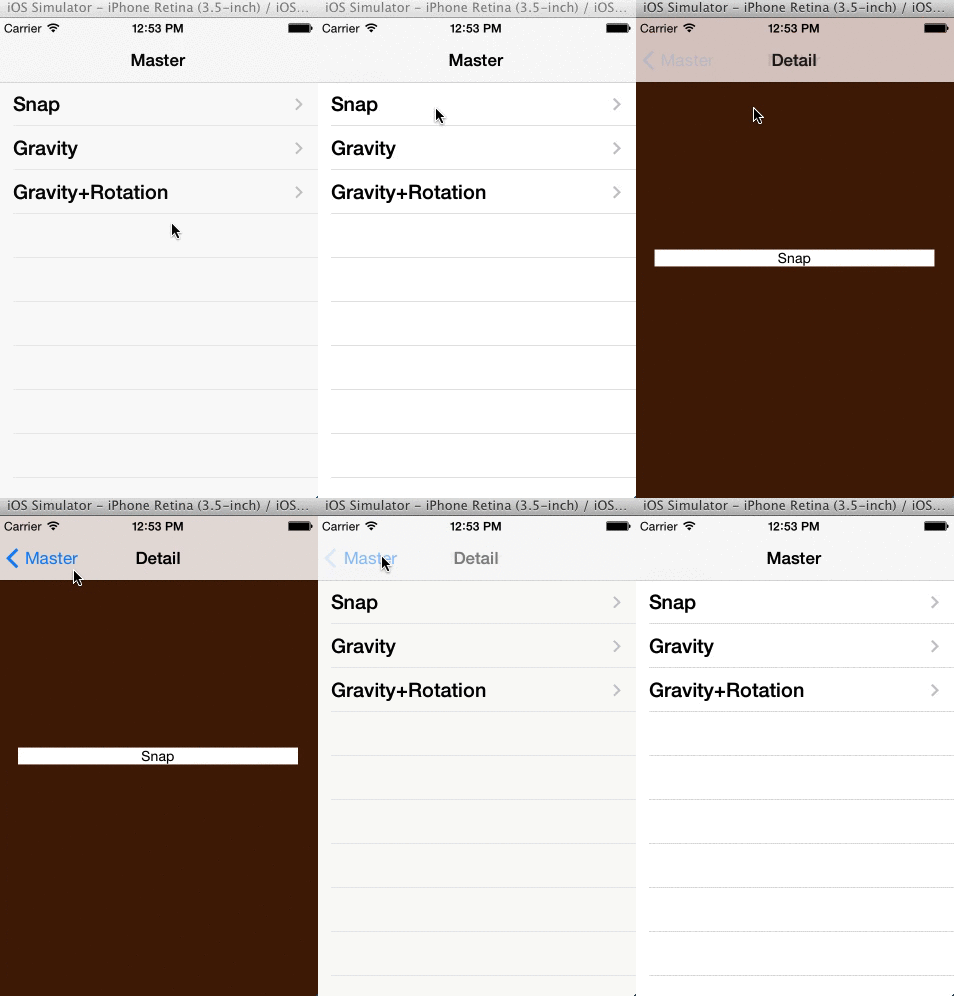
This code and the code of two other dynamic view controller transitions can be found on [github](https://github.com/dasdom/DDHDynamicViewControllerTransitions).
As always, I you have any comments or an idea how to handle the timing in a better way, connect me on App.net: [@dasdom](https://alpha.app.net/dasdom).
Read more...
-
My reasons not to use AppCode
[AppCode](http://www.jetbrains.com/objc/) is an Objective-C IDE which is used by a lot of iOS developer. I've tried to use and like it but I didn't succeed. My reasons not to use AppCode are
### 1 Energy
When ever I used AppCode it showed up immediately in the battery menu: "App Using Significant Energy". Sure, most of the time this isn't a problem (if one neglects the influence on the environment) because where I work there is normally a power source I can use. But I don't like to switch IDEs. I try to learn one IDE and stick to it. Therefore sometimes I need to have to work without accessible power source. In this case I would have to switch to Xcode because of energy consumption. This would mean to learn two sets of short cuts or to change nearly all the short cuts in AppCode.
### 2 Knowledge is my resource
I heard in a [German podcast](http://uisprech.de) that people using AppCode begin to not care about how the frameworks and APIs Apple provid look like because the IDE is smart enough to figure all that out. This sounds like an advantage but for me it isn't. I get hired because of my knowledge of Objecive-C and especially Cocoa Touch. This means I have to use the frameworks and practice every day to remember how everything fits together. Sure, using a clever IDE helps you to get an overview of how everything fits together, but I think one starts to forget the basics.
What if I apply for a job and get asked about my favorite framework (this already happened to me in an interview)? Or when a colleague asks me if I could help her with a bad bug. Chances are that she is using Xcode.### 3 Learning curve
Getting to know AppCode is a lot of work. I tried to use it for several hours and it didn't feel right. I was lost most of the time.
### 4 Coding style
More often than not I have a general idea how the architecture of the App will look like. AppCode helps you not to think and care about before you code because it very powerful in adding code when need. Let's say you use a class before you have defined it. Xcode will complain. AppCode will suggest to add this class for you. I think I would get used to it and would start not to think about be code before I start.
### 5 The Looks
Let's face it: AppCode doesn't look like a Mac App. In fact it's kind of ugly. This is the weakest point. I think one gets use to it.
What do you think? Let me know at [@dasdom](https://alpha.app.net/dasdom).
Read more...
-
Code generator for property existence unit tests
Sometimes I write tests to ensure that there are all the properties I expect in a class. The test looks like this:
[code language="objc"]
#import <XCTest/XCTest.h>
#import <objc/runtime.h>
#import "MyClass.h"
...
- (void)testThatMyClassHasNameProperty {
objc_property_t nameProperty = class_getProperty([MyClass class], "name");
XCTAssertTrue(nameProperty != NULL, @"MyClass should have a name property.");
}
[/code]All these tests look the same. What a great opportunity to write a script to create those tests. Here it is:
[code language="perl"]
#!/usr/bin/perl -wuse strict;
if (not defined($ARGV[1])) {
die "usage: $0 <class name> <file with property names>n";
}open(PROP, $ARGV[1]) || die "could not open property names file: $!n";
my $className = $ARGV[0];
while (defined(my $line = <PROP>)) {
chomp($line);
print "- (void)testThat" . $className . "Has";
print ucfirst($line) . "Property {n";print "tobjc_property_t " . $line . "Property = class_getProperty([";
print $className . " class], "" . $line . "");n";print "tXCTAssertTrue(" . $line . "Property != NULL, @"";
print $className . " should have a " . $line . " property.");n}n"
}
[/code]To print the tests onto the Terminal call the script:
[code]
perl createPropertyTests.pl MyClass properties.txt
[/code]The `properties.txt` file is expected to look like this:
[code]
name
date
age
[/code]Any comments? Get in touch with me at [@dasdom](https://alpha.app.net/dasdom).
Read more...

subscribe via RSS